Frotcom can control different types of vehicles in which a GPS tracker has been installed. Some other assets, such as trailers or containers without an installed GPS tracker, can be coupled and uncoupled to these vehicles.
Frotcom allows you to establish this connection, and by doing so, you will know where the assets were picked up, which trips they made and where they were left, each time.
Permissions
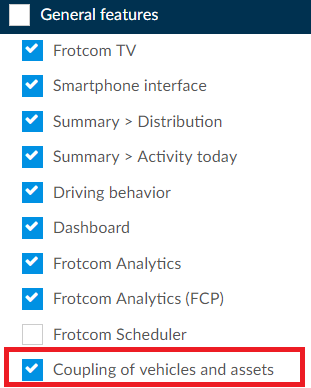
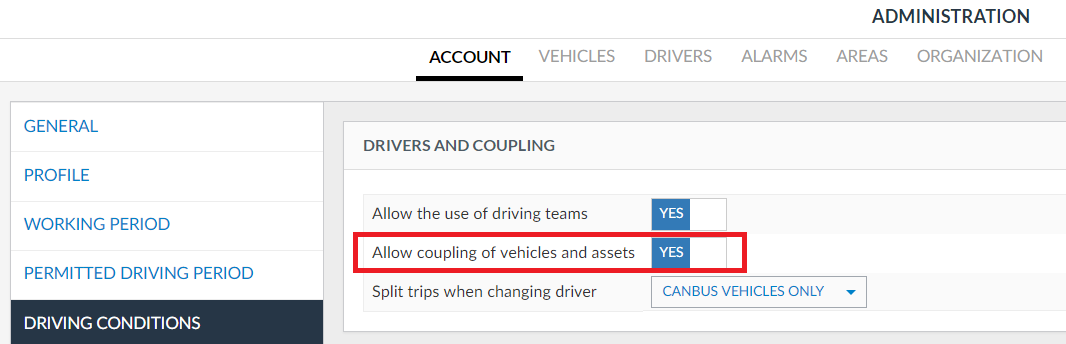
To enable coupling in your account, you need to have the permission Coupling of vehicles and assets and to activate the setting Allow coupling of vehicles and assets on Administration > Account > Driving condition:
Vehicle context menus
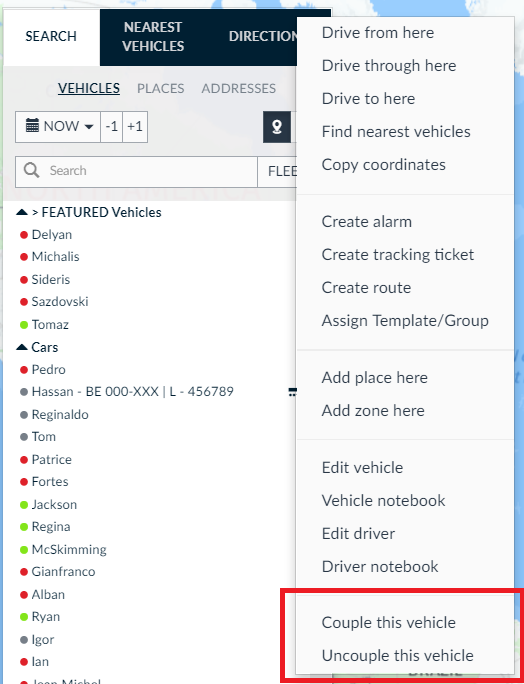
On the vehicle context menu, you can see the Couple/Uncouple this vehicle/asset:
Couple this vehicle
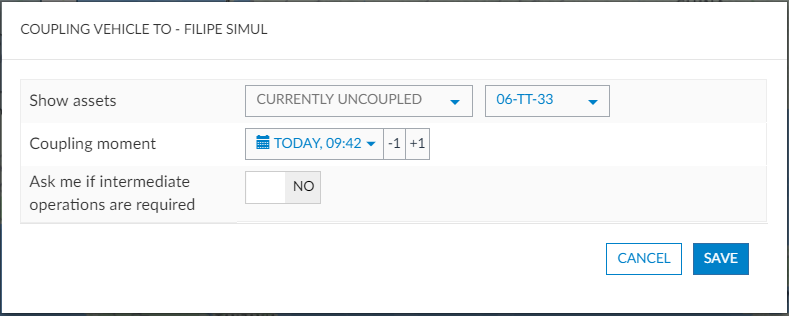
On Couple this vehicle you will see the following options:
| Show assets | You can filter the assets that are currently coupled, uncoupled or all assets |
| Coupling moment | Choose if you want to couple the vehicle right away or schedule a coupling time |
| Ask me if intermediate operations are required | If you choose this option, Frotcom will check if the vehicle is already coupled by the time of the coupling, and you'll see a confirmation window to confirm the operation if needed. |
Uncouple this vehicle

To uncouple the vehicle, you can choose to either uncouple it right away or schedule a time for it.
Notes
- You can perform the coupling/uncoupling operations from an asset as well, following the same menus and options described above.
- The association can still be done on the menu Administration > Vehicles - General, but it will be only available if the permissions are set for the user.
- Assets with GPS cannot be manually coupled/uncoupled. To be able to couple and uncouple assets with GPS, you must configure the Automatic coupling/uncoupling based on GPS position.
Vehicle bottom panel
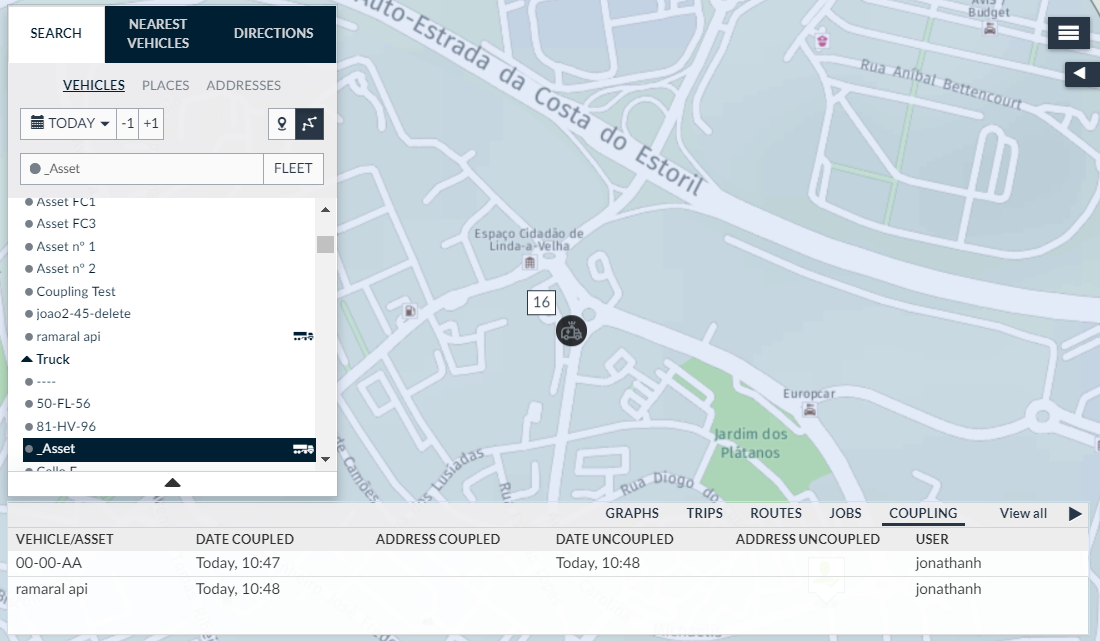
When you select a vehicle/asset in path mode, you can see on the bottom panel a new option Coupling.
Here, you see the list of coupling and uncoupling operations of the vehicle, in the period selected:
Map settings > Vehicle
When the coupling features are active, you can configure the following fields:
| Field | Description | Example |
| License plate of the vehicle | Shows the vehicle's license plate | BG XXXX CB |
| License plate of the asset |
Shows the asset's license plate if the vehicle is coupled. If not, it's empty |
L - 456798 |
| License plate of the vehicle | License plate of the asset |
Shows the vehicle's and the asset's license plates, separated by "|", or only the vehicle's license plate if no asset is coupled |
BG XXXX CB | L - 456789 |
These fields can be set in any of the two fields available in:
- Fields to show in vehicle list,
- Fields to show in vehicle marker
- Fields to show in vehicle infobox
Vehicle selector list
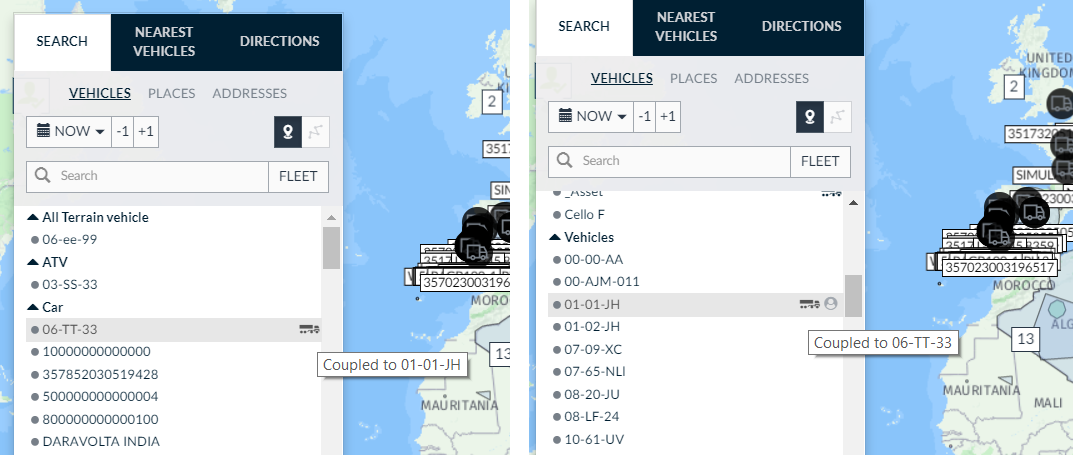
If a vehicle and asset are coupled, both are still shown in the vehicle selector list, separately. There is, however, a semitrailer icon to the right, to depict that the vehicle/asset is part of a couple. If you mouse over the coupled truck symbol of the vehicle, you can see the asset coupled:
Summary > Activity today
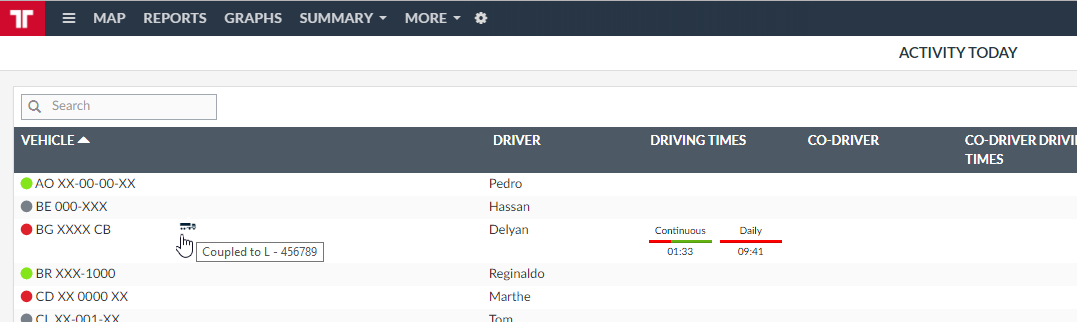
You can also see the coupled vehicles with the truck coupled symbol on Summary > Activity today:
Global vehicle filter
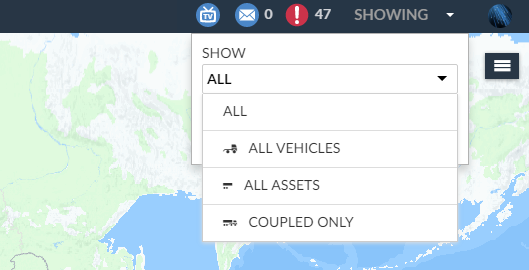
With coupling activated in your account, you see a global filter with the following options:
| All | Shows all vehicles and assets, coupled or not |
| All vehicles | Shows only vehicles, coupled or not. Does not show assets |
| All assets | Shows only assets, coupled or not. Does not show vehicles |
| Coupled only | Shows only coupled vehicles and assets |