How to Access this Information
In the Administration → Tachographs menu, select a vehicle from the table. You will see a table that will display the last recorded company lock details for each downloaded DDD/TGD file, including:
- Start Date
- End Date
- Company Name
- Card Number
Activity Period:
- The start and end timestamps of the activities stored in the file will also be displayed.
Column Name |
Description |
|---|---|
|
Download on |
Date and time when the file was downloaded. |
|
Company card |
The company card used for the download. |
|
Manually Uploaded |
Indicates whether the file was uploaded manually. |
|
Filename |
Name of the downloaded file. |
|
Last Downloaded By Application On |
Date when the file was last downloaded via the application. |
|
Last Sent By Email On |
Date when the file was last sent via email. |
|
Downloaded Activities |
Contains the start and end timestamps of downloaded activities. |
|
Start timestamp |
Start time of the stored activities. |
|
End timestamp |
End time of the stored activities. |
|
Last company locks |
Contains the timestamps, company name, and card number for the last company lock. |
|
Start timestamp |
Start time of the last company lock. |
|
End timestamp |
End time of the last company lock. |
|
Company Name |
Company name of the last company lock. |
|
Card number |
Card number of the last company lock. |
Overview of Data Display
The Overview section of a tachograph DDD file contains general data about the vehicle, Company Locks data and Control Activities data.
You need to open a Tachograph File and decode the following values:
- Start Timestamp of stored activities
- End timestamp of stored activitie
The Company Lock section contains the history of all the company locks that were saved by the tachograph, shown in a table with the following columns:
- Start date
- End date
- Company Name
- Card Number
The goal is to save only the last (most recent) company lock of the list.
The Company Lock data is a tachograph-specific data, thus, the dates and the company locks will be shown on Frotcom Web → Administration → Tachograph → Tachograps menu.
The Drivers download section will not be changed because the Driver Card files do not contain this information.
Table Behavior For Restricted Files
Certain files may have restricted download permissions due to your company's settings. When this occurs:
- You will still be able to view the file information, but the file itself will be read-only and cannot be downloaded.
- These files will appear visually distinct and unselectable.
Please note that the files are kept in Frotcom's data center for a maximum of 12 months, after which they will be removed.
To send files via e-mail, tick the desired ones and click on the Send files by mail button, on the upper left part of the panel. After that, you will see the following panel:
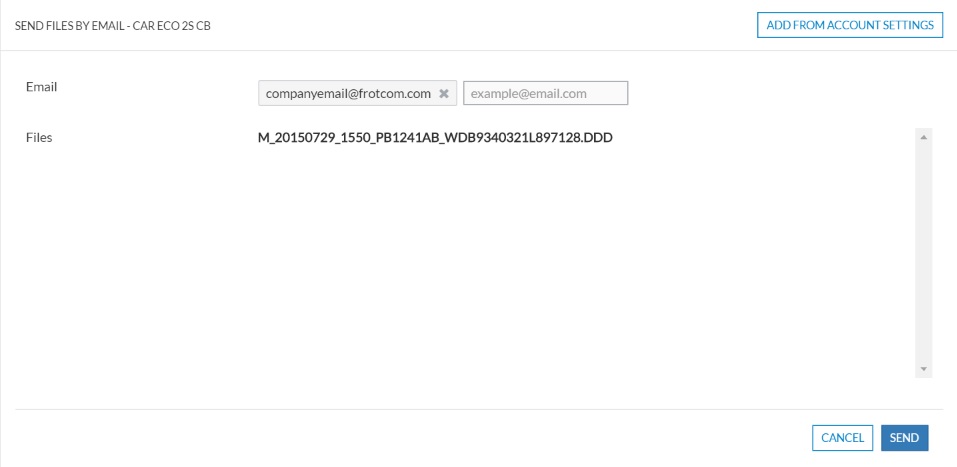
The panel contains the following options:
| Field | Description |
|
Field to be filled with the email addresses that shall receive the selected tachograph file. NOTE: You can fill it manually or import the same email account(s) as defined in the account settings. For that, click on the Add From Account Settings button and the emails that are set on the Administration > Account > General will be considered automatically. |
|
| Files | Identification of the tachograph file to be sent via email. |
After you fill the necessary fields, confirm your action by clicking on the Send button on the lower right part of the panel.

If you wish to download driver card files and circulate them via e-mail, click here.