The Generic forms module of the Driver app allows you to visualize the Generic forms your company has available.
You can then select any form and fill it with the necessary information, with the options to send to the office, or save it as a draft for later. You can also see a history with the forms you have sent.
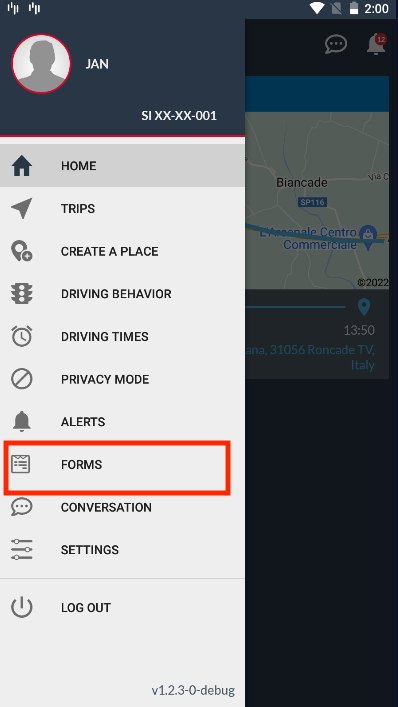
To access the Generic forms module, you may go to the Main menu and click on Forms:
There are 3 tabs in this list: Forms, History, and Drafts.
Forms
You will see a list with all the forms available for you. Forms can have 3 different colors:
- Red: Highlighted forms
- Gray: Normal forms
- Blue: Folders (folders might contain Forms and other folders in it)

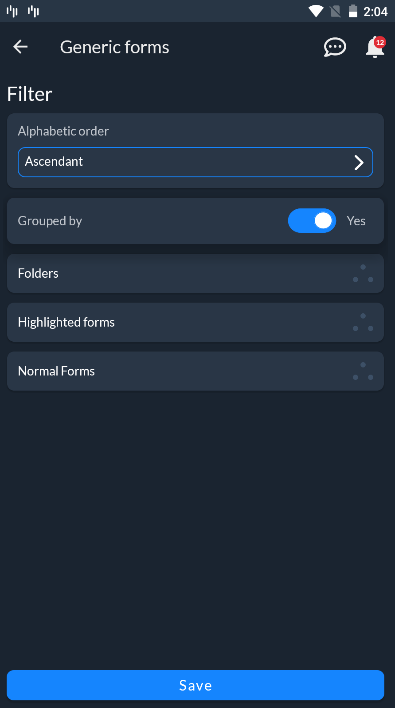
If you wish to change the order of this list, you may tap on the Hamburger menu located at the top-right corner:

Here you can select the Alphabetical order of the list (Ascendant or Descendant), as well as the Grouping order (If you select Yes, you can drag and drop the options to fit best to your needs:
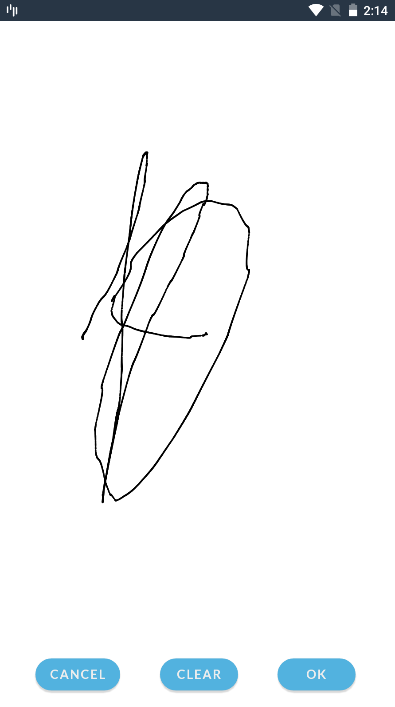
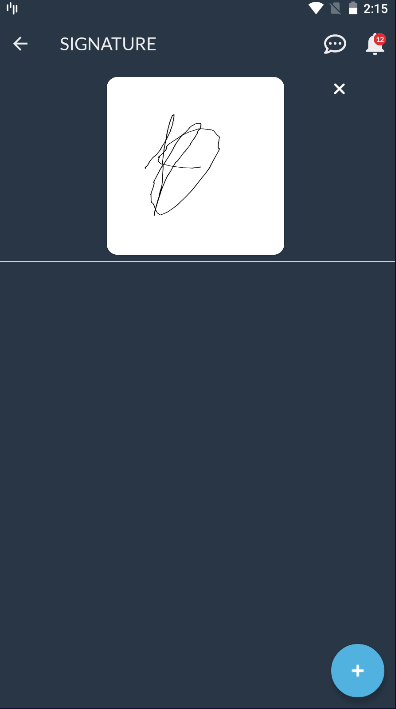
To fill a form, you may select it from the main list. Forms may have different formats and fields:

Once you are done, you have 2 options:
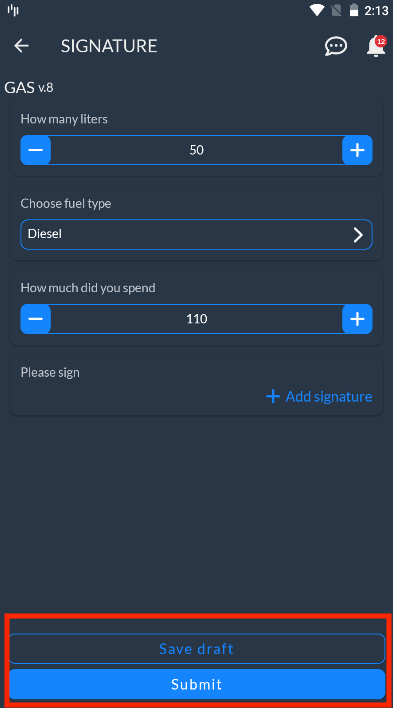
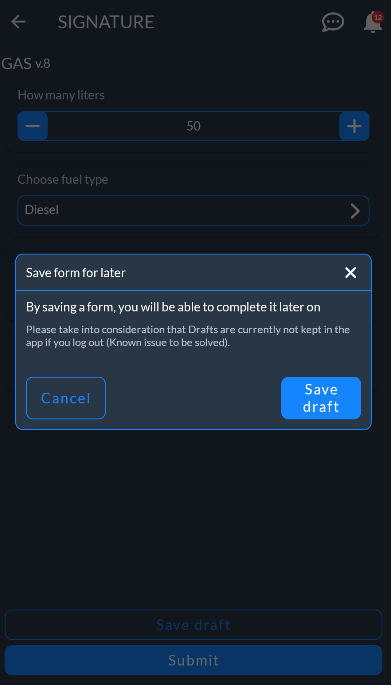
- Save draft: The form won't be sent to the office, and will be saved in the Drafts tab with the current values. You must confirm the action after selecting this option:
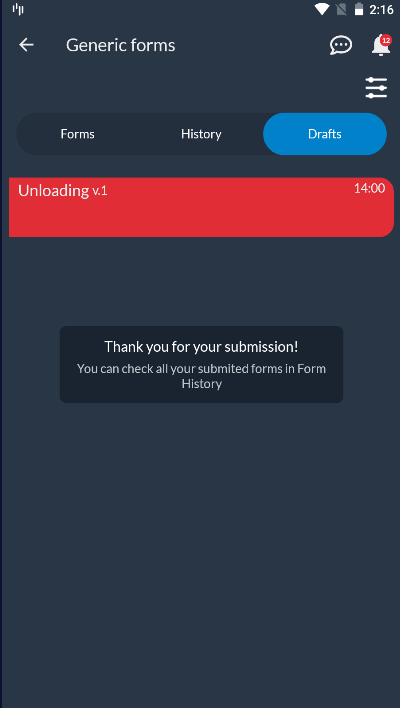
- Submit: The form will be sent to the office, and will be available in the History tab:
History
In this tab, you will find all the forms you have submitted successfully to the office.
You will see the forms listed with a small preview of their content:
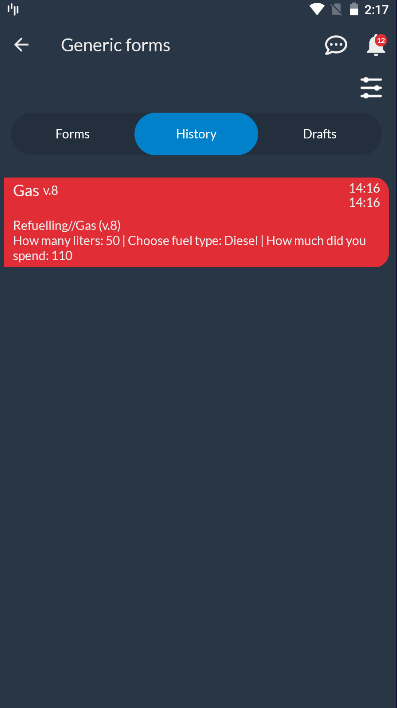
You can also click on the form to see the full information sent to the office.
Important: This version of the Driver app does not support offline history, meaning that once you log out from the app, you will lose the history.
Drafts
In the Drafts tab, you will be able to see all the forms you saved for later.
You will see the drafts listed with a small preview of their content:
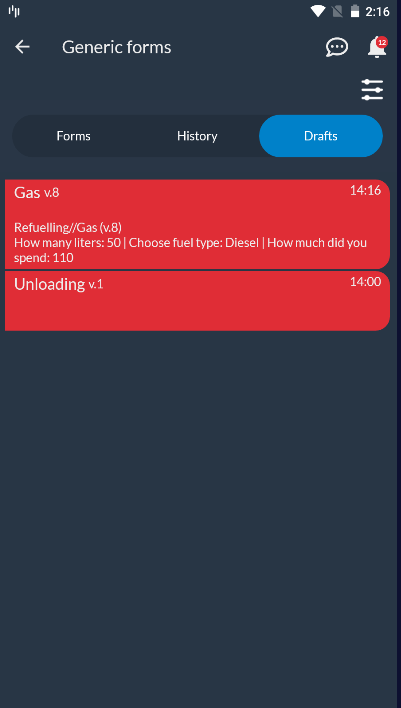
If you click on any draft, you will be able to edit this form again from the point you saved it before. You can then submit this form, or save it as a draft again.
Important: This version of the Driver app does not support offline history, meaning that once you log out from the app, you will lose the history.