The Conversation module of the Driver app adds the option for the drivers to communicate with the Office, Departments, Segments, and other Drivers.
Main
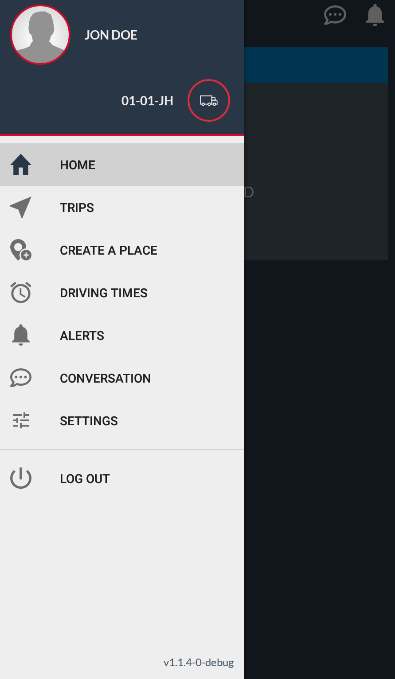
To access the Conversation module, you may go to the Main menu and click on Conversation:
Alternatively, you can click on the Conversation icon in the top-right corner.
This icon also indicates (with a red number) whenever you have new unread messages:

You will see a list of your most recent messages.
At the top of the list, you will find the Office group, where you can exchange messages with your Fleet Managers, followed by all the other conversations:
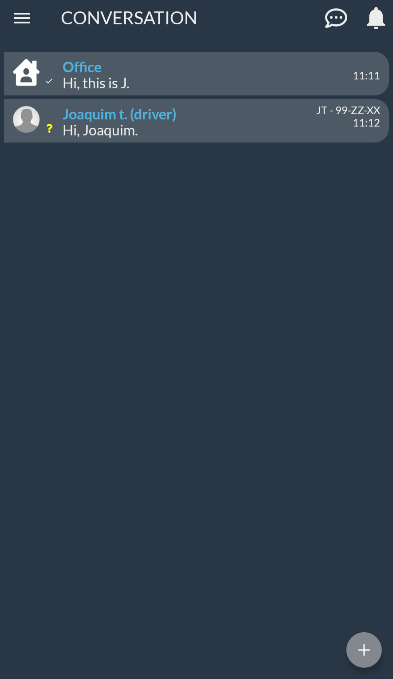
Next to it conversation, you may see the License plate of the vehicle associated with the Driver, as well as the time the message was sent and read:

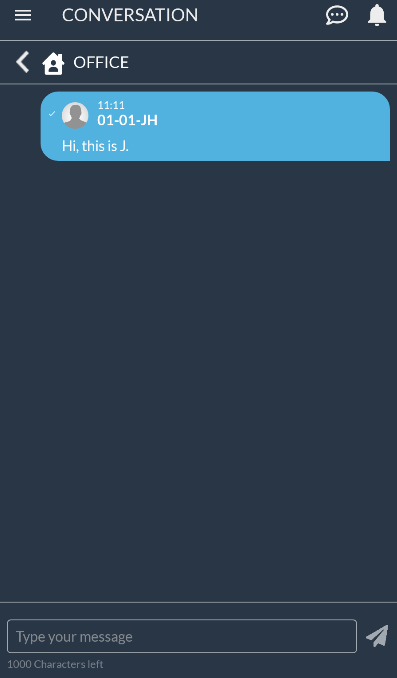
If you tap on a group, you will see a history of all the messages exchanged with this person or group:
Sending a new message
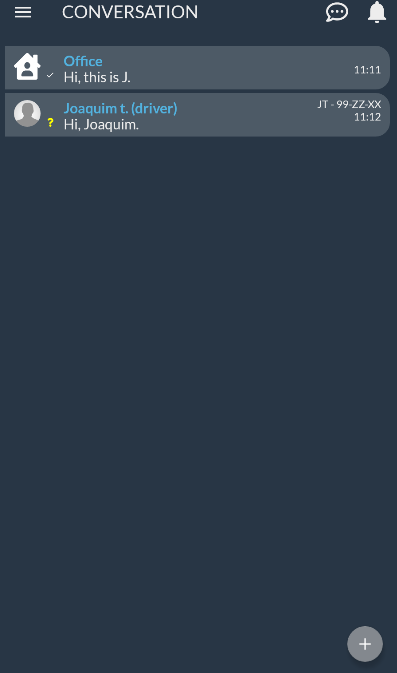
To send a new message, you must tap on the + icon at the bottom-right corner:
You will see the following screen:
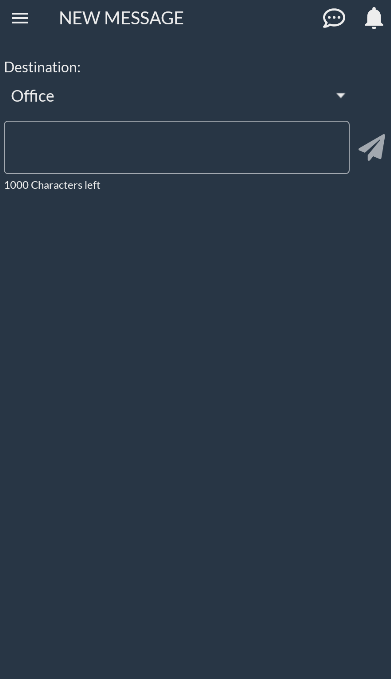
You must select where you will send your message to
The following options might be available for you, depending on the permissions given by your Fleet Manager:
- Office
- User
- Driver
- Department
- Segment
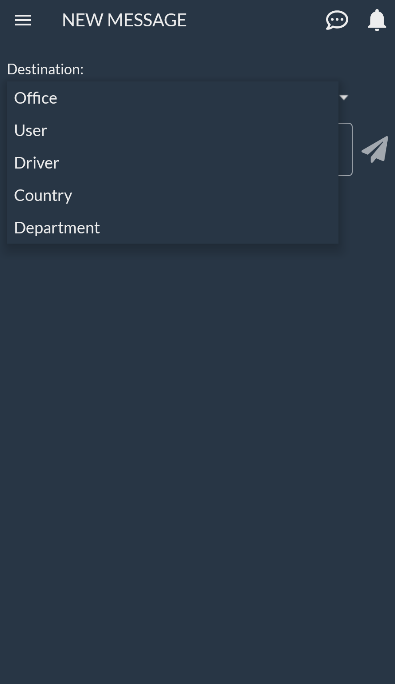
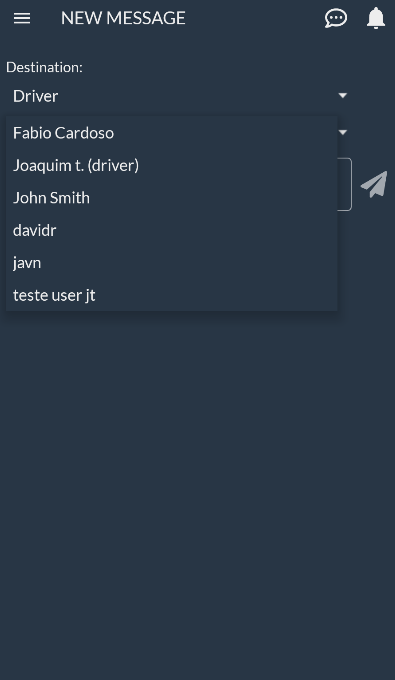
Next, based on the previous selection, you can select the destination of your message. For instance, if you want to send a message to another Driver, first select Driver and then the Driver's name:
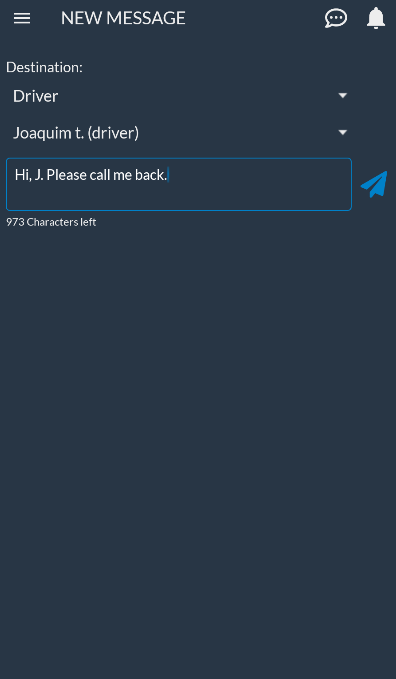
After that you can write your message (up to 1000 characters) and tap on Send:
Replying to a message
To reply to a message, just open its group, type your message, and tap on Send:
