The Alerts module of the Driver app allows you to receive the alerts set up for you or for your vehicle directly on your smartphone.
Main
To access the Alerts view, go to the Main Menu and tap on Alerts:
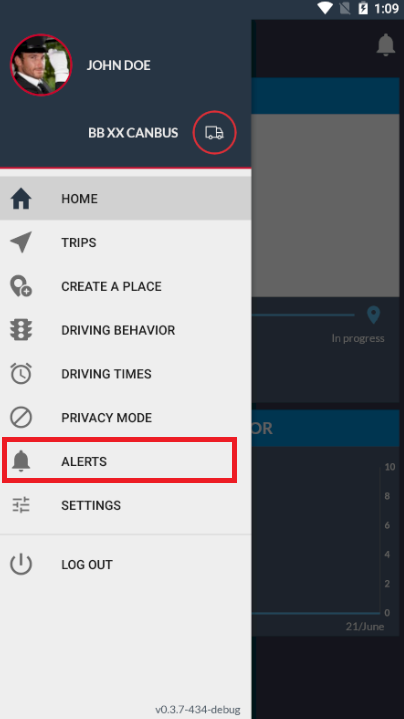
As an alternative, you may tap on the Alerts icon at the top-right corner of the screen.
The number next to the icon represents the number of alerts that you received but have not been read yet:
You will see a list with all the alerts triggered for the vehicle you're associated with:
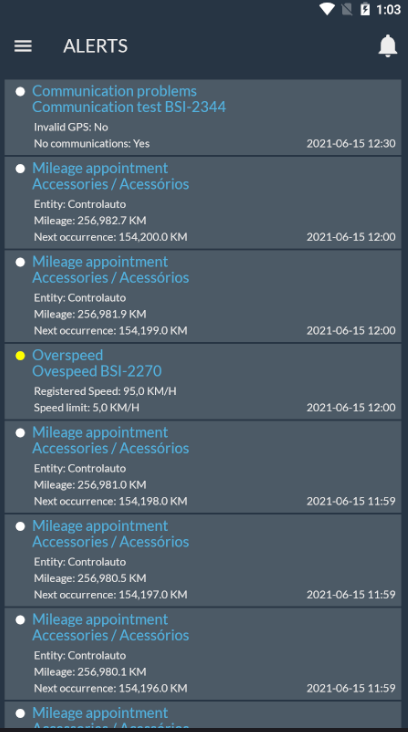
Each alert in the list contains the following attributes:

- Alert type and Alert description. The name of the alert is in bold as long as the alert remains unread (not yet opened for details);
- Severity level: Represented by a small circle with the same color as the definition of the respective severity level;
- New alert ribbon: New alerts that have not been opened yet have a blue ribbon on the far left side. If an alert is not opened for more than 24 hours, the ribbon is removed.
- Details: The details of this alert;
- Date/Time: If the alert was triggered today, it only displays the time of the event; otherwise, it shows the date and time.
The list contains the alerts (Alarms, as they are known in Frotcom Web) triggered for your vehicle only during the last period the driver or a co-driver was associated with that vehicle. It means that you won't see the alerts triggered for a vehicle you were previously associated with, or the alerts triggered for another driver while associated with your current vehicle.
Details
You may open an alert to see its details by tapping on it. You will see the following screen:
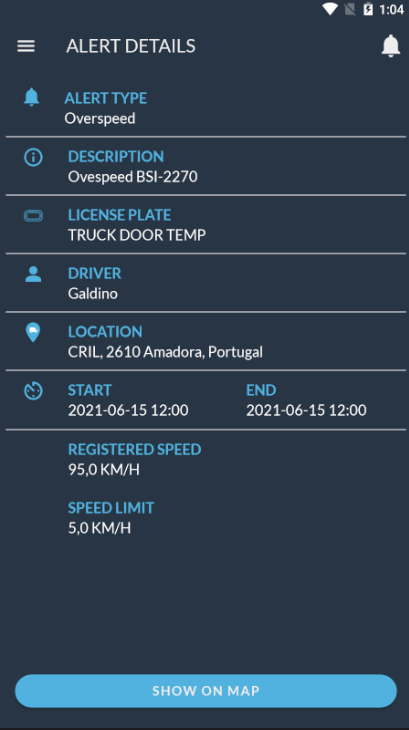
The content of the alert details varies depending on each alert due to each alert having a different set of attributes. However, the name of the alert and the license plate are always displayed at the top.
If the alert contains the information regarding the location where it was triggered, the button Show on Map will be available at the bottom:

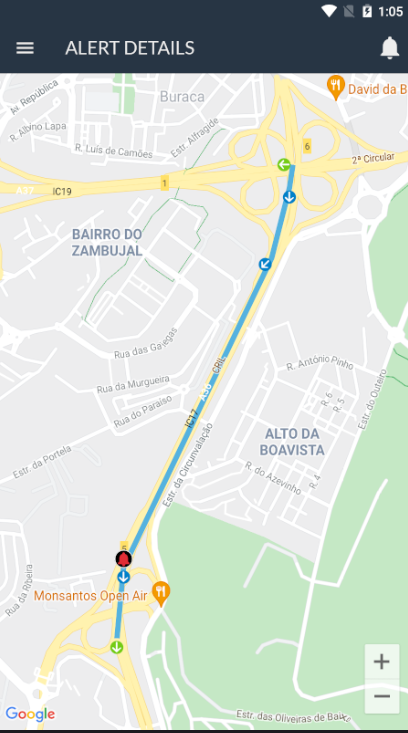
If you tap on this button, a small preview of the Map (with the option to zoom in/zoom out by pinching) is displayed:
Notifications
When you receive a new alert with the Driver App opened (i.e., in the foreground) you will see a popup where you can either open the alarm details or dismiss it to check it later:

If the Driver App is not running as the main app on your smartphone, the alert will be sent to your smartphone's Notification Center and will be treated as such according to the device's definitions.
Gadget
The Recent alerts gadget is a simplified version of the main alerts view. It displays the latest unread alerts triggered for the driver (up to two), with the exact same attributes displayed in the main list. If there are no Alerts to show the Recent alerts gadget is not shown:
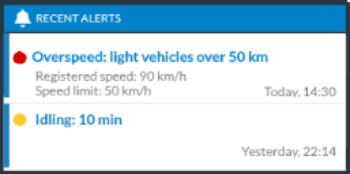
To activate this and other gadgets, you must access the Settings menu and select them from the list.