With this report, you will be informed about the trips executed by each vehicle/driver within a certain time period. For each trip, the report informs about start and stop places, start and stop times, mileage ran, elapsed time, alarms triggered during the trip, among others.
Configuration
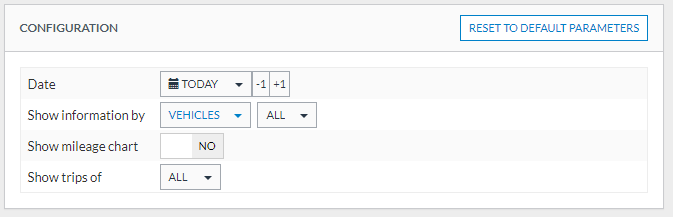
To generate the report, you must configure the following inputs:
| Configuration | Description |
| Date | Choose a day for which the report will be generated. |
| Show information by |
Here you must choose which source you wish to use to organize the information. It can be:
Once you select one source, you must select which components will be used to filter the report. For instance, if I want my report to be generated for only some vehicles of my fleet, I first select Vehicles and then choose the License plates of the vehicles you wish to see in the next selector:
|
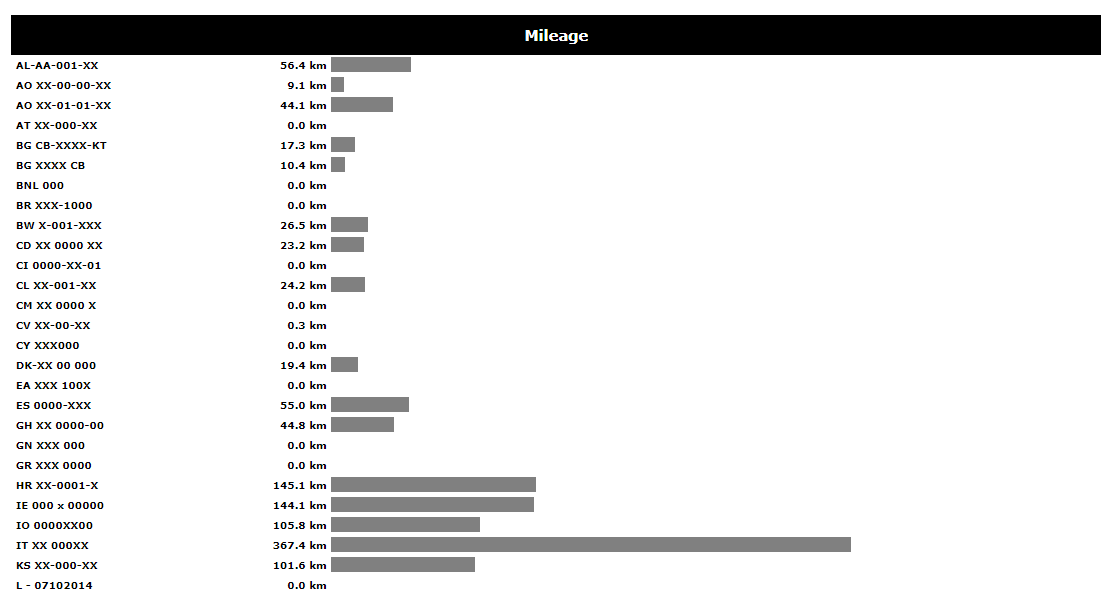
| Show mileage chart | If you select this option, a bar chart with the milage driven by each vehicle will be presented at the start of the report (Default: No). |
| Show trips of | Only trips of the selected Departments and Segments will be used to generate the report. By default, every trip (even the ones without a Department/Segment associated with it) will be displayed in the report. |

Output

For each selected vehicle, the report will generate a table with all the executed trips in the selected period.
The output of the report contains the following data/columns:
| Column | Description | |
| Departure | Time | Time of departure |
| Place | Place of departure (empty if the address doesn't match any Place configured in Frotcom) | |
| Address | Address of departure | |
| Odometer | Vehicle's odometer at the moment of the departure (the milage unit matches the selection of the Preferred milage and speed unit in Administration > Account > General). | |
| Arrival | Time | Time of arrival |
| Place | Place of arrival (empty if the address doesn't match any Place configured in Frotcom) | |
| Address | Address of arrival | |
| Driver | Driver's name | |
| Duration | Driving | Total driving time |
| Idle | Total idle time | |
| Total | Driving time + idle time | |
| Mileage | Mileage | Mileage driven during the trip (the milage unit matches the selection of the Preferred milage and speed unit in Administration > Account > General). |
| Cost | Cost | The cost is calculated based on the costs provided for that vehicle in the Management module. |
| Speed | Max |
Vehicle's maximum speed during the trip (the speed unit matches the selection of the Preferred mileage and speed unit in Administration > Account > General). |
| Mean | Vehicle\s average speed during the trip (the speed unit matches the selection of the Preferred mileage and speed unit in Administration > Account > General). | |
| Stop |
The stop time is the time between completing this trip and starting the next trip. |
|
| Alarms | The number of alarms triggered for the vehicle during the trip. | |
| Department | Department this vehicle/driver belongs to (if any) | |
| Segment | Segment this vehicle/driver belongs to (if any). |
At the bottom of each table, you can see the totals for Duration, Mileage, Cost, Speed, Stop, and Alarms.
If you selected the option Show chart mileage, a bar chart will be also displayed at the start of before the tables report with all the selected vehicles and the mileage driven ran by them: