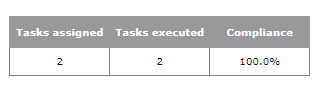
The Workforce management tasks report will show, for a period and for a vehicle or selection of vehicles, the number of assigned and executed tasks, as well as the average execution times and mileage.
This report has also a detailed version that lists the detailed information of all the activities of all jobs-tasks executed in the given period (including interruptions).
Configuration

To generate the report, you must configure the following inputs:
| Configuration | Description |
| Period |
The period the report will be generated for. Options:
|
| Show information by |
Here you must choose the source of the information. It can be:
Once you select one source, you must select which components will be used to filter the report. For instance, if I want my report to be generated for some vehicles of my fleet, I first select Vehicles and then choose their License plates in the next selector:
This does not change, however, the output or the grouping of information in the output of the report. |
| Show totals | If selected, the report will generate an extra line at the end of the table with totalizers for the period (Default: No). |
| Detailed report | If selected, the report will be generated in the Detailed format, with information of all the activities of all jobs-tasks executed in the given period (Default: No). |

Output
This report can have two different outputs.
The first one (Detailed report = No) is the summarized version of the report. For each Task Type, the report will display a table with all the vehicles that executed tasks with this type:
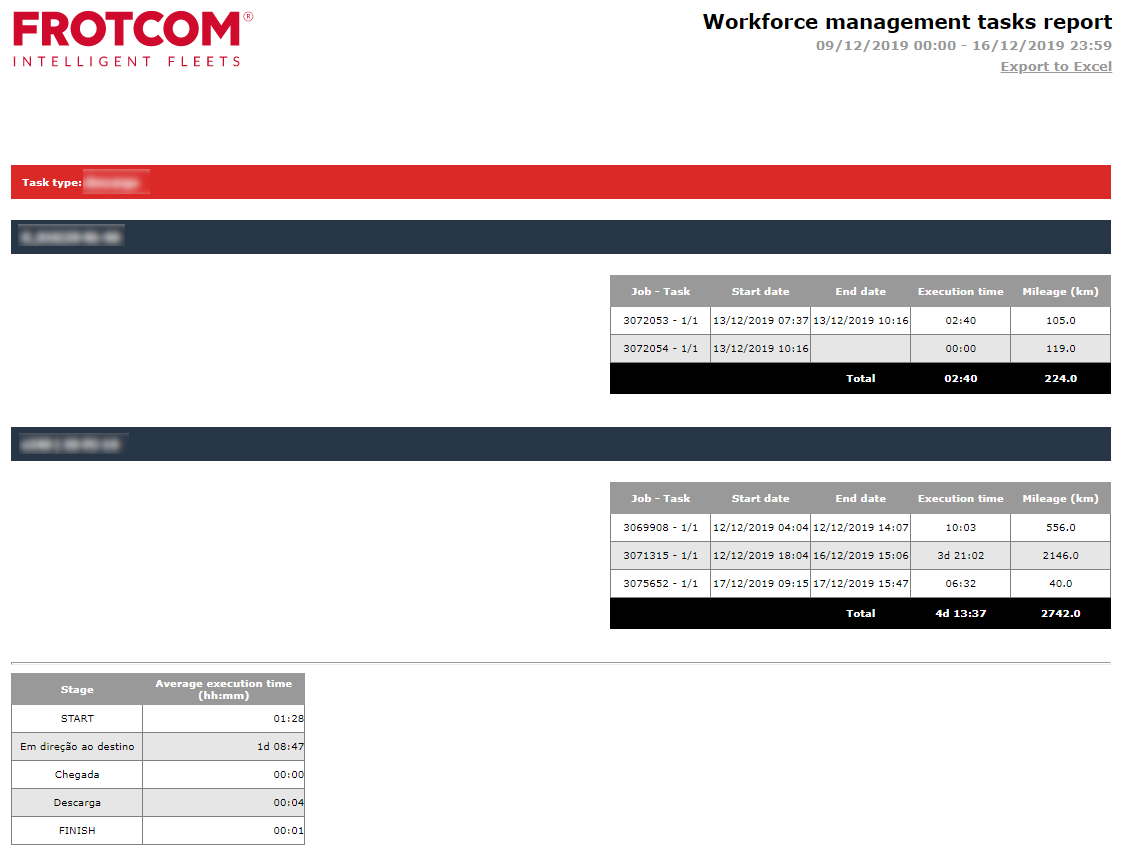
It contains the following data/columns:
| Column | Description |
| Job-Task | The number of the Job and the Task, separated by a dash. |
| Start date | Date when the task was started. |
| End date | Date when the task was finished. |
| Execution time | Execution time (End date - Start date) |
| Mileage |
Mileage driven during the execution of this task. The mileage unit respects the selection made n Administration > Account > General - Preferred milage and speed units. |
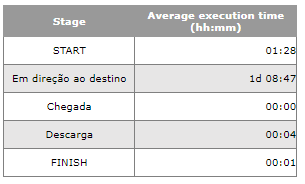
At the end of each block (of each Task Type), you can see a totalizer with the Average execution time of each stage of the task.
The second possible output of this report (Detailed report = Yes) lists, per vehicle, the details of each activity executed during the Tasks:

It contains the following data/columns:
| Column | Description |
| Job - Task | The number of the Job and the Task, separated by a dash. |
| Activity | Activity (or interruption) triggered during the execution of the Task. |
| Start date | Date when the activity started. |
| End date | Date when the activity finished. |
| Duration | Duration of the activity (End date - Start date) |
If you select the option Show totals in the configuration of the report, you will see yet another table that contains the total of Tasks assigned, Tasks executed, and percentage of Compliance. This table is available for both versions of the report.