To go to the Entities management panel, go to the Management module and select the Entities folder:

The following panel will be displayed to you:
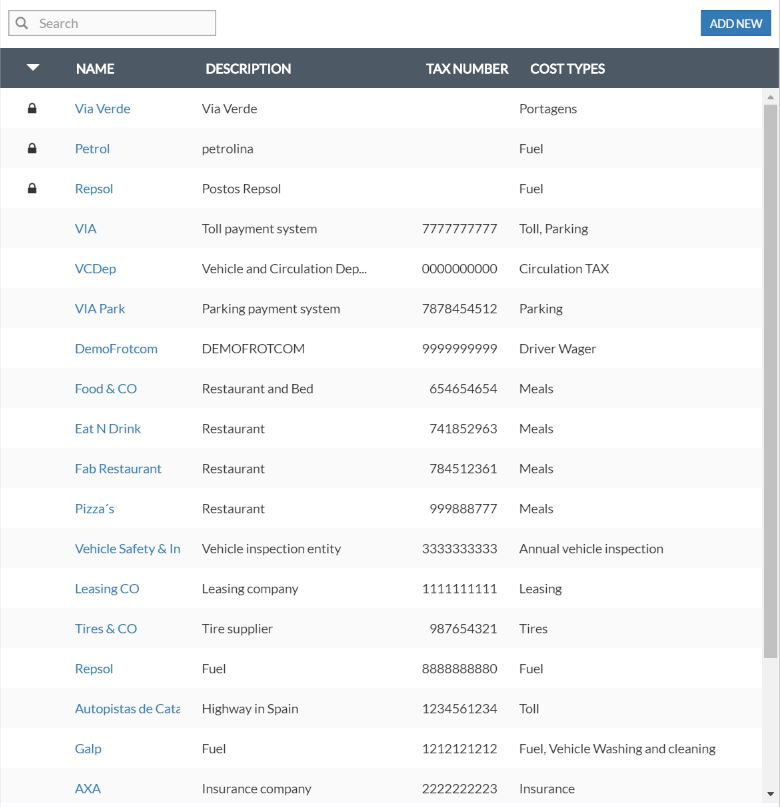
It contains the following information:
| Column | Description |
| Name | Name of the entity. |
| Description | Alternative description for the entity. |
| Tax number | Tax number of the entity. |
| Cost types | Cost type identification (e.g. vehicle washing company, tolls company, etc., it is up to you). |
You will notice that particular Entities will be marked with the lock symbol:
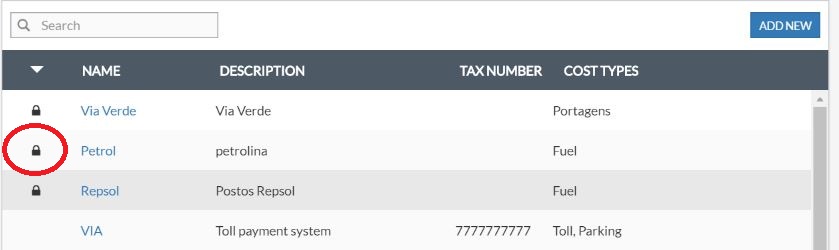
This means that a particular entity identified with the lock symbol may have been already preset by your Frotcom Certified Partner and it is not changeable or erasable.
If you wish to create a new entity, click here.
If you wish to edit an already created entity, click on the blue link in the Name column representative of the respective row:
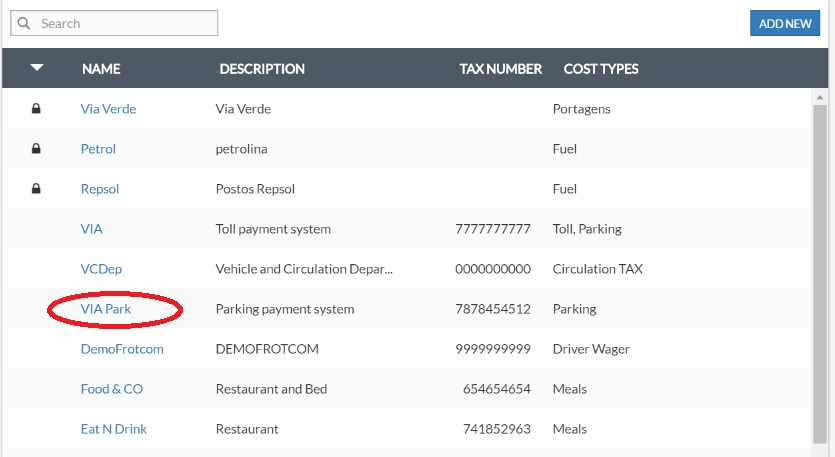
After, a similar panel to the one of Entity creation, will be displayed to you. Moreover, you will be able to edit all the fields in a similar way to when a new entity was created.
To delete an entity, enter the edit mode and click Delete:
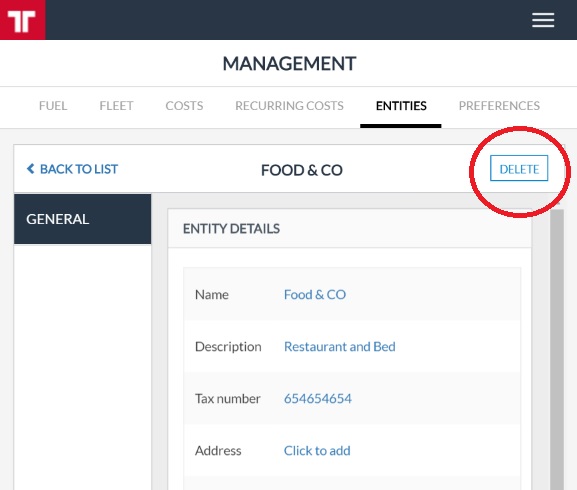
After, the following confirmation panel will be available to you. Click Confirm.
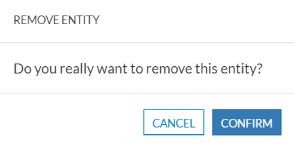
Note that you will not be able to erase an entity if there is already a cost inserted in Frotcom, associated with that entity. First, you will have to erase all costs associated with that entity and then erase the entity.