To administer the Workforce devices and their active features, first choose the user icon on the top-right part of the screen:

Then, click the Administration option.

You will see the Administration menu. Select the Terminals option.

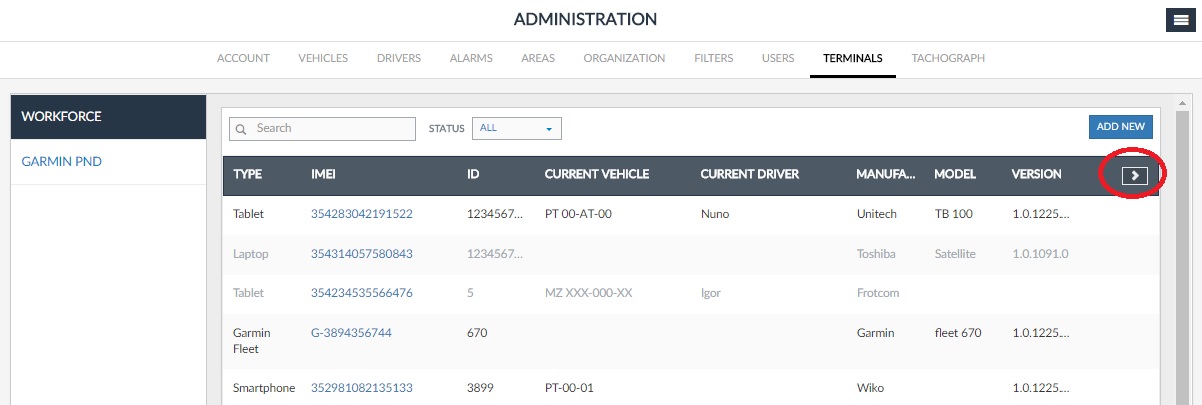
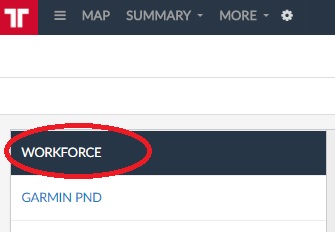
After that, the Terminals administration panel will be displayed to you. Click on the Workforce tab, located on the left-part of the screen:
The following screen will be displayed to you:
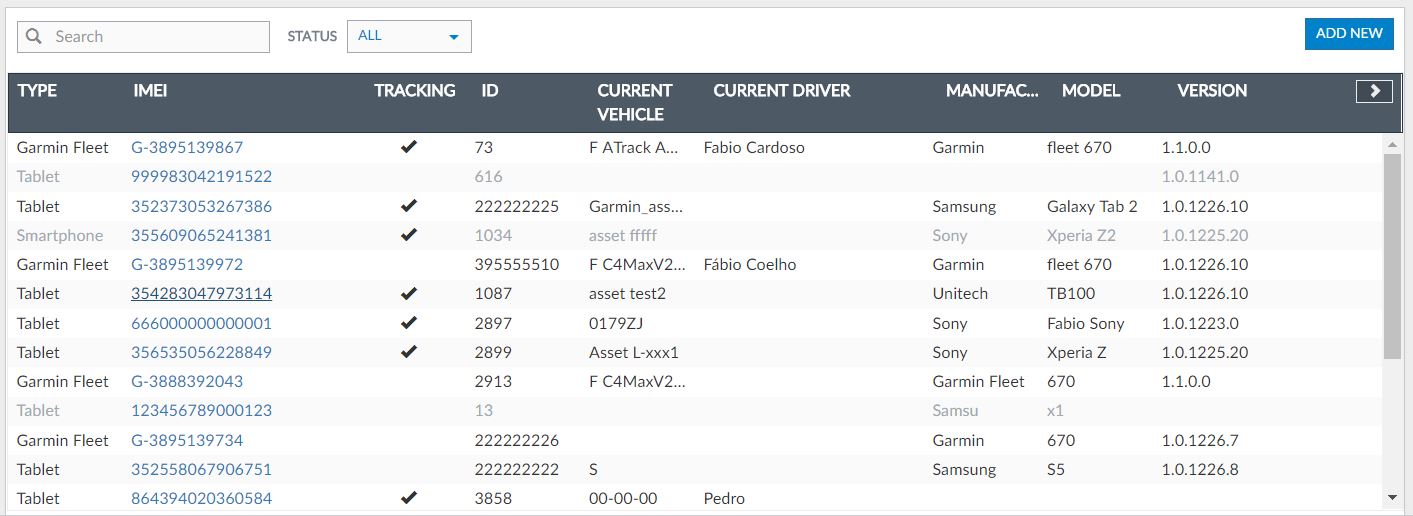
It contains the following information:
| Column | Description |
| Type |
This is the type of mobile device. In Frotcom these can be of the following types:
|
| IMEI | This is the IMEI corresponding to each device. This unique number must be inserted by you before Frotcom is able to communicate with the device. Please contact your Frotcom Certified Partner if you are not sure about where to look for the IMEI of your mobile devices. |
| Tracking | Shows which devices are working as tracking device |
| ID | Unique internal designation you must choose to tell each device apart. You may want to put a sticker with this ID in the device, so you will always be able to identify each device without having to check the internal IMEI (similar to a serial number). |
| Current vehicle | If the mobile device is currently associated with a vehicle, the vehicle's license plate will display here. |
| Current driver | If the vehicle is currently associated with a driver, the driver's name will display here. |
| Manufacturer | Manufacturer (brand) of the mobile device. |
| Model | Model of the device. |
| Version | Version of the software in the device. |
| Notes | Free notes. |
To view the last column (Notes), click on the arrow button located in the upper right part of the main bar: